# TypstDrive
[](https://github.com/your-username/typstdrive)
[](https://typst.app/)
[](https://www.rust-lang.org/)
[](https://kit.svelte.dev/)
[](https://tailwindcss.com/)
[](https://bun.sh/)
[](https://www.postgresql.org/)
[](https://www.docker.com/)
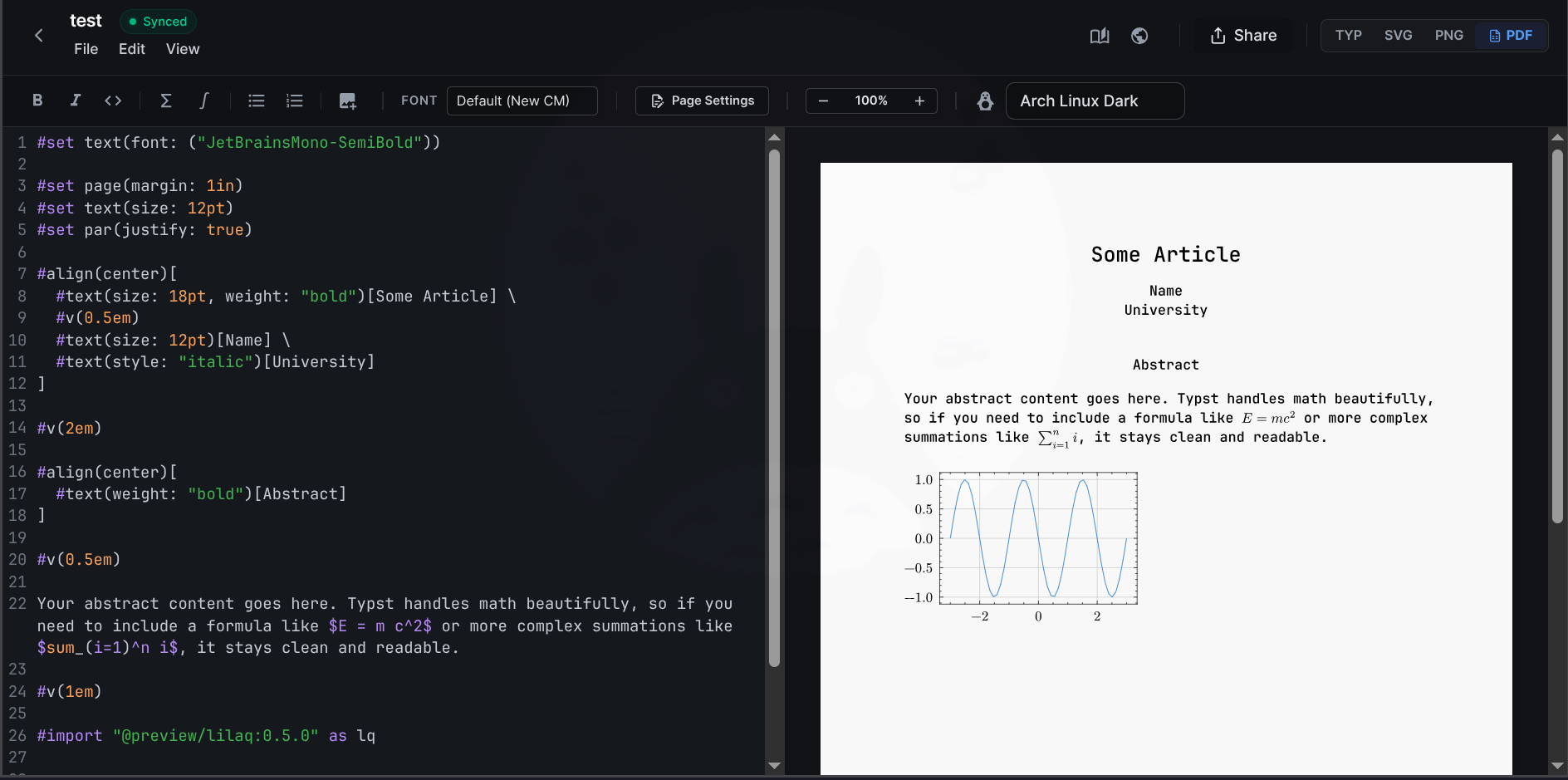
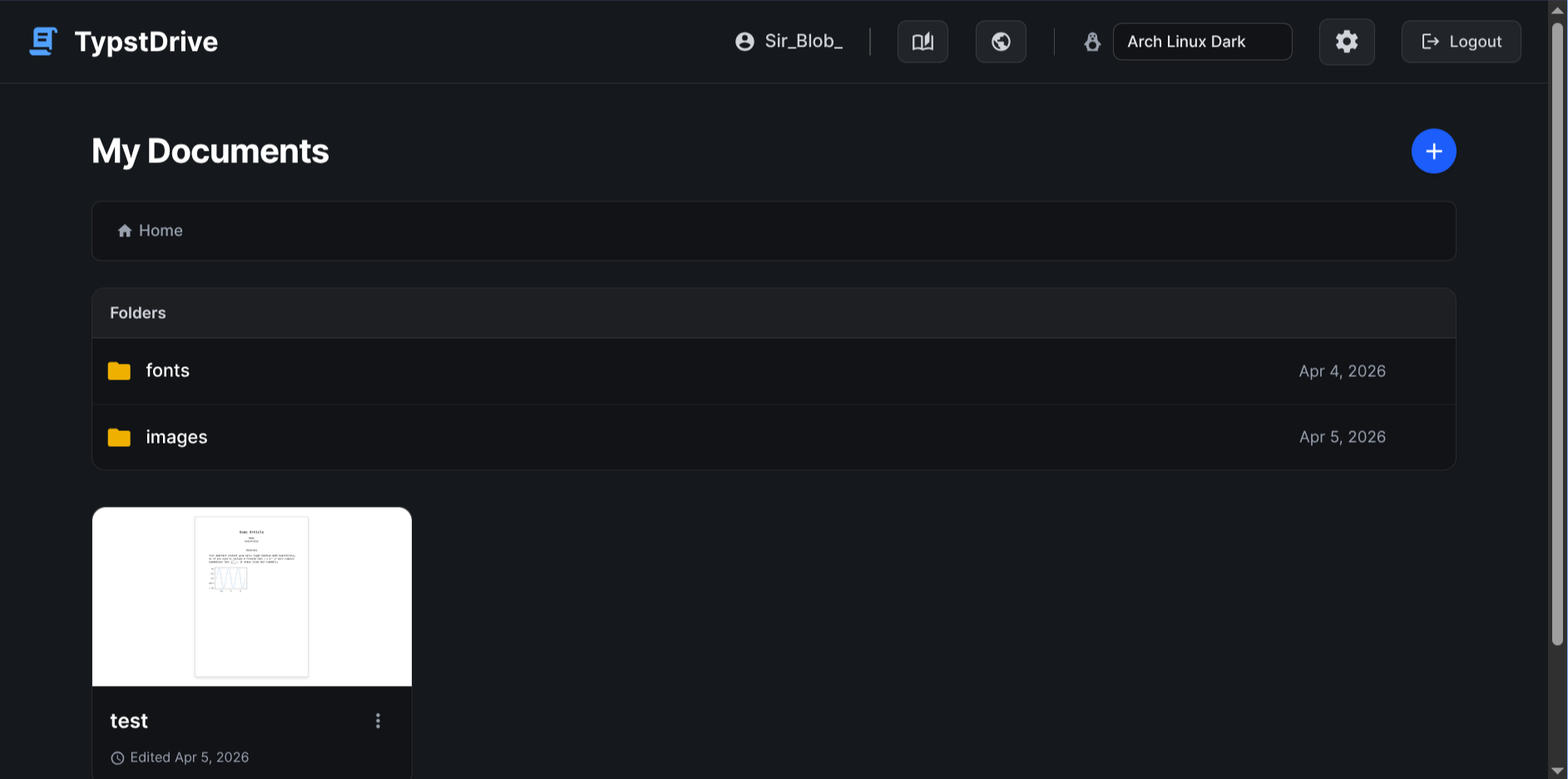
TypstDrive is a collaborative web editor for Typst. With built-in dark mode, multiple themes, and a clean Google Docs-like interface, it makes creating and sharing documents effortless.
## Features
- **Real-Time Collaboration**: Powered by Yjs and CodeMirror 6, see changes and cursors from other users instantly.
- **Instant Preview**: Compile Typst to SVG on the fly with sub-second latency, featuring interactive document zoom controls.
- **Customizable Themes**: Choose from multiple editor themes (Catppuccin, Arch Linux, Cerberus) and toggle global dark mode.
- **Export Options**: Export your compiled documents directly to PDF, PNG, SVG, HTML, Markdown, Word, or LaTeX formats using internal conversion and Pandoc integrations.
- **User Authentication & Document Access**: Secure accounts, workspaces, and sharing features via email-based collaborator invitations (Editor or Viewer roles) for all your documents.
- **Presentation Mode**: Turn your documents into instant slideshows with built-in slide controls and a live drawing/annotation tool overlay.
- **Asset Management**: Upload and seamlessly use custom fonts and images directly within your documents.
## Fonts & Images
TypstDrive allows you to upload custom `.ttf` or `.otf` fonts and image files (`.png`, `.jpg`, `.svg`, etc.) to your folders or directly to a document's workspace.
### Custom Fonts
When you upload a font file (e.g., `JetBrainsMono-Regular.ttf`), it is automatically made available to the Typst compiler. You can use the font in two ways:
1. **By Typographic Family Name:** You can use the internal font family name embedded in the file.
```typst
#set text(font: "JetBrains Mono")
```
2. **By Filename (Convenience Alias):** You can also use the exact name of the uploaded file (without the extension), which is extremely helpful if you are unsure of the exact typographic family name.
```typst
#set text(font: "JetBrainsMono-Regular")
```
### Images
Uploaded images can be referenced natively using the `#image` function in Typst. Simply upload your image file (e.g., `logo.png`) to your dashboard and reference it by its exact filename in your `.typ` document.
```typst
#image("logo.png", width: 50%)
```
## Self-Hosting
TypstDrive is completely self-hostable. We provide a Docker image that packages both the Rust backend and the SvelteKit frontend.
### Prerequisites
- [Docker](https://docs.docker.com/get-docker/)
- [Docker Compose](https://docs.docker.com/compose/install/)
### Getting Started
1. Clone the repository:
```bash
git clone https://github.com/your-username/typstdrive.git
cd typstdrive
```
2. Start the application:
```bash
docker-compose up -d
```
3. Open your browser and navigate to:
```
http://localhost:3000
```
### Data Storage
The PostgreSQL database containing users and documents is persisted via the Docker volume `pgdata`. This is automatically configured in `docker-compose.yml` to ensure your data persists across container restarts.
## Local Development
If you'd like to contribute or run TypstDrive without Docker:
### Frontend
1. Install dependencies: `npm install`
2. Run the dev server: `npm run dev`
### Backend
1. Start the local database: `docker-compose up -d db`
2. Navigate to the `server/` directory.
3. Build and run: `cargo run`
Note: The frontend expects the backend to be running on port 3000. During local development via Vite, API calls are proxied automatically.
## Screenshots